Less catching up.
More knowing what comes next.
A project channel has useful information scattered between updates, questions, and conversation. The goal of this workflow is a short briefing: what changed, what is due, and what needs your decision—with the original messages one click away.
Your Dot is an ongoing assistant in ChatGPT. Slack gives you another place to talk to it. This guide focuses on one bounded responsibility: keeping a project briefing useful over time.
Give it an ongoing responsibility.
Keep the important decisions yours.
A useful first task has a clear source, a concrete output, and a place for you to review it.
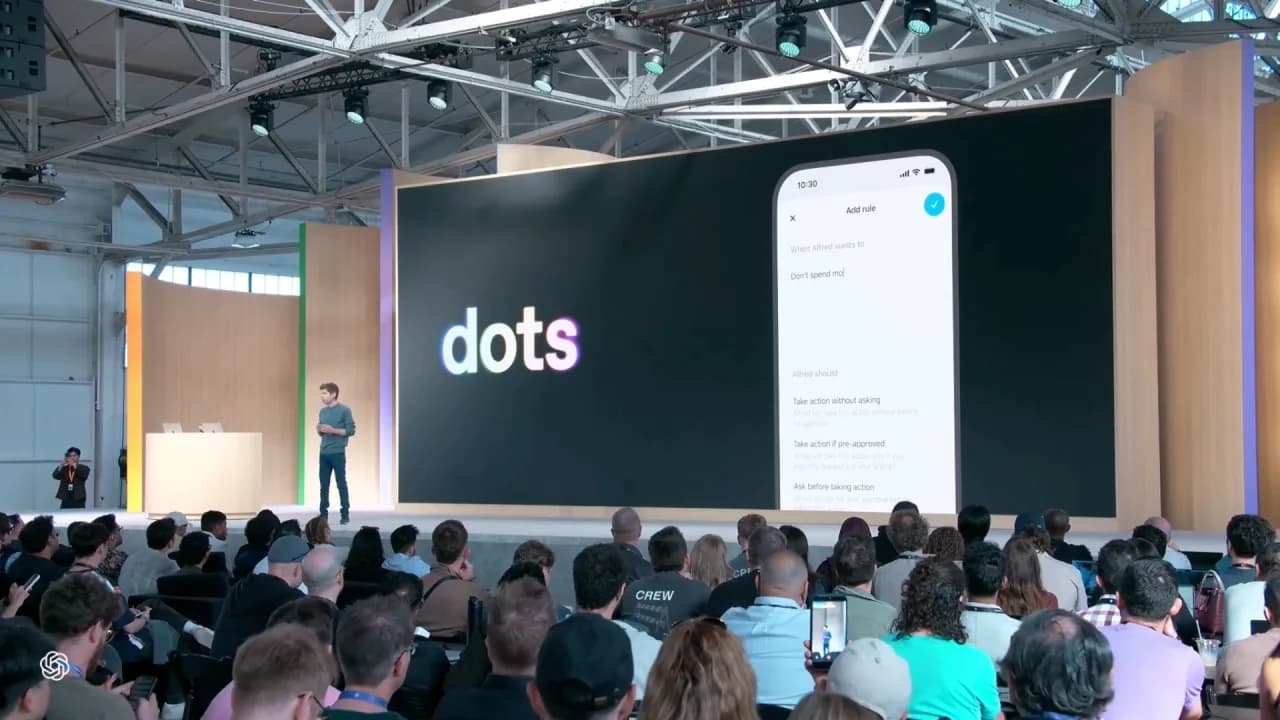
Image: OpenAI DevDay keynote, September 29, 2026. From our live coverage. The pictured rules are launch imagery; current controls may differ.Three parts. One useful workflow.
A contact method, source access, and a schedule each do a different job. Explore the three parts before connecting anything.
Connect Slack from your Dot’s profile → Add. This gives you a place to send requests and receive replies. It does not connect your inbox, Drive, or computer.
“Send the briefing to my Slack DM.”
Local computer access is a separate connection. It is only needed for work that uses that computer.
OpenAI documents these connections separately. Your Dot’s cloud computer can work without your laptop; tasks needing local files or skills still need a connected, available computer. Read the connection guide ↗
From your Dot to your first Slack DM.
Start small. Verify the connection and one source before asking for an ongoing briefing. Screen labels can change during rollout.
Before you start
0 of 3 checked · Your progress stays on this page.
- 1
Create or open your Dot on desktop
Use ChatGPT in a desktop browser or the desktop app. Complete the introduction if you have not created your Dot yet. You can personalize its name and appearance; connect only the tools this first task needs.
 Your DotProfileIllustrated navigation
 - 2
Add Slack as a contact method
Open your Dot’s profile and select Add. Choose Slack if it is available. Complete the connection prompts for the intended workspace and check the account before continuing.
Dot profile Add SlackDocumented pathIf your organization manages access, a ChatGPT admin may need to enable Dots and Slack participation. A Slack owner or app manager may also need to approve the ChatGPT app. Admin guidance ↗
- 3
Check the conversation and the sources
Send a small request in your Dot’s Slack direct message. If using a channel, add your Dot and mention it in the relevant thread. Confirm it can access the exact source you intend to summarize; supported plugins and their permissions apply separately.
“Review this thread. List the decisions and link to each message. Don’t post in the channel.”Open the links yourself. A reply in Slack proves the contact method works; a correct, verifiable result helps establish that the requested source is accessible.
- 4
Review one briefing. Then request a schedule.
Use the builder below to name your project, sources, and update style. Correct the first result. For recurring work, specify the time zone, end date, and private destination, and ask your Dot to confirm what it set up.
Source → sample → correction → confirmed scheduleInspect the task in Scheduled. Adding a Dot to a channel alone does not schedule a briefing. Recurring work and review ↗
Read the walkthrough transcript
- Open your Dot’s profile on desktop. Select Add and choose the Slack contact method available to your account.
- Complete the connection for your intended workspace. Check any admin approval and source access.
- Send a small request in your Dot’s Slack DM. Ask for decisions, deadlines, and blockers with links to the original messages.
- Review the sample briefing. Then request a weekday schedule, time zone, end date, and private destination. Ask your Dot to confirm.
Your Dot joined #launch. Is a daily briefing now scheduled?
Choose an answer to check your understanding.
A busy channel.
Your kind of briefing.
Choose sources, change the lookback window, and decide what deserves your attention. Every finding comes from a fictional message you can inspect. Nothing connects to Slack or runs an AI request.
Try removing blockers. What important detail disappears?
Decision: we're launching the free trial first. The team plan will follow after the beta.
The signup page needs legal approval by Thursday. We don't have a reviewer assigned yet, so Friday's launch is at risk.
I'll deliver the onboarding emails by Wednesday at 3 PM. Please send final edits before noon.
Also, the new coffee place downstairs is excellent. ☕
3 findings from 4 messages
Free trial launches first; the team plan follows the beta.
Legal review has no assigned owner. Approval is needed Thursday to protect Friday's launch.
June owns onboarding emails: Wednesday, 3 PM. Final edits are due at noon.
Illustrative output, not a live AI response.
A useful briefing is verifiable. Open a source link to see the message behind a finding.
Make it yoursA clear brief.
A better first task.
Your choices above become a starting prompt. Personalize it, then let your Dot confirm access and timing.
Copying this prompt does not connect Slack or create a schedule. Review the first result before relying on recurring work.
Change sources or update styleYour project name and prompt stay in this browser.
Find the missing piece.
Check contact methods, source access, and recurring tasks separately. A confident answer is only useful if you can verify it.
I don’t see Dots or the Slack option
Check your account’s current eligibility and rollout status. In a managed workspace, ask the admin to check Dots access and the Slack participation permission. A missing option is not proof that you set it up incorrectly.
The connection needs admin approval
Slack app approval and ChatGPT workspace permissions are separate. Ask the Slack owner or app manager about the ChatGPT app, then complete your own Dot connection. Enabling a ChatGPT permission alone does not install the Slack app.
It replies, but cannot read the channel
A successful DM verifies the contact method. It does not prove access to every channel or app. Confirm the workspace, the exact source, and the connected account. Ask for a link to one message you can independently open.
No briefing arrived—or the timing is wrong
Open Scheduled and inspect the instructions, time zone, and destination. Ask your Dot what it confirmed. If a task needs a connection or approval, review that request. Do not assume that a channel invite created a schedule.
It invented an owner or missed a decision
Open the original thread and compare it with the briefing. Give the Dot a concrete correction and require missing details to stay unconfirmed. Try a smaller source window before adding more channels.
I want the recurring updates to stop
Disable or delete the recurring task in Scheduled. Pause stops the main task; delegated tasks must be stopped in Activity separately. Review each kind of work rather than assuming a pause cancels everything.
Before you hand
off the next task.
Start with a private summary and verifiable sources. Expand the responsibility after you know the first result is useful.
Do I need an API key or code to connect my Dot to Slack?
The documented Slack contact-method setup starts in your Dot's profile. It does not require writing an API integration. You need access to Dots, the intended Slack workspace, and any app approval required by that workspace.
Is my Dot the same as @ChatGPT in Slack?
These are separate entry points. This guide connects your personal Dot from its profile. Installing or using @ChatGPT in Slack does not by itself connect your Dot or establish an ongoing responsibility.
Does adding my Dot to a channel make it monitor the channel?
No. Name the sources, what it should check, the timing, and where updates should go. Ask it to confirm the recurring task. A channel connection alone is not a monitoring schedule.
Can my Dot keep working when my laptop is off?
Your Dot has its own cloud computer. Work that needs your local files, apps, or local skills requires your connected computer to stay online with ChatGPT open. A Slack contact method does not grant access to that computer.
Can other people in Slack give my Dot tasks?
OpenAI's current admin guidance says only the owner can direct their Dot through a Slack direct message or supported channel mention. Other participants' messages may provide context. Anyone who can access the conversation can see posts made there.
Can I use iMessage instead?
OpenAI's messaging documentation currently lists native texting as coming soon. This tutorial uses the documented Slack connection. Third-party iMessage bridges require a separate, verified setup.
Sources, credits, and how we made this guide
Written by the Superpower Daily Editorial Desk. Documentation reviewed October 7, 2026. The setup follows OpenAI’s published instructions; we have not independently completed a live Dots-to-Slack account setup for this guide. The lab, example briefings, and silent video are original illustrations using fictional material. Product availability and labels may change.
- Meet dotsWhat a Dot does and who can access it. · OpenAI
- Get started with your dotDesktop setup and separate connections. · OpenAI
- Message your dotSlack contact methods and monitoring instructions. · OpenAI
- Connect computers and appsPlugin permissions and cloud versus local work. · OpenAI
- Tasks and memoryOngoing responsibilities and recurring work. · OpenAI
- Control your dotReviewing, pausing, and canceling work. · OpenAI
- Manage dots permissionsWorkspace access and Slack app approval. · OpenAI
Media: keynote image credited above; default Dot icon from OpenAI’s documentation. Interface illustrations and the animated walkthrough by Superpower Daily. This is an independent educational guide.
One useful task is a good start.
Follow the tools and workflows that make AI useful in real work.